 Hours Tracker
Log Overnight Shift Hours in Hours Tracker
Enter both dates, add a break after midnight and check a 22:00–06:00 shift. See where the app places it in Time Sheets and exports.
Set the End date to the following day
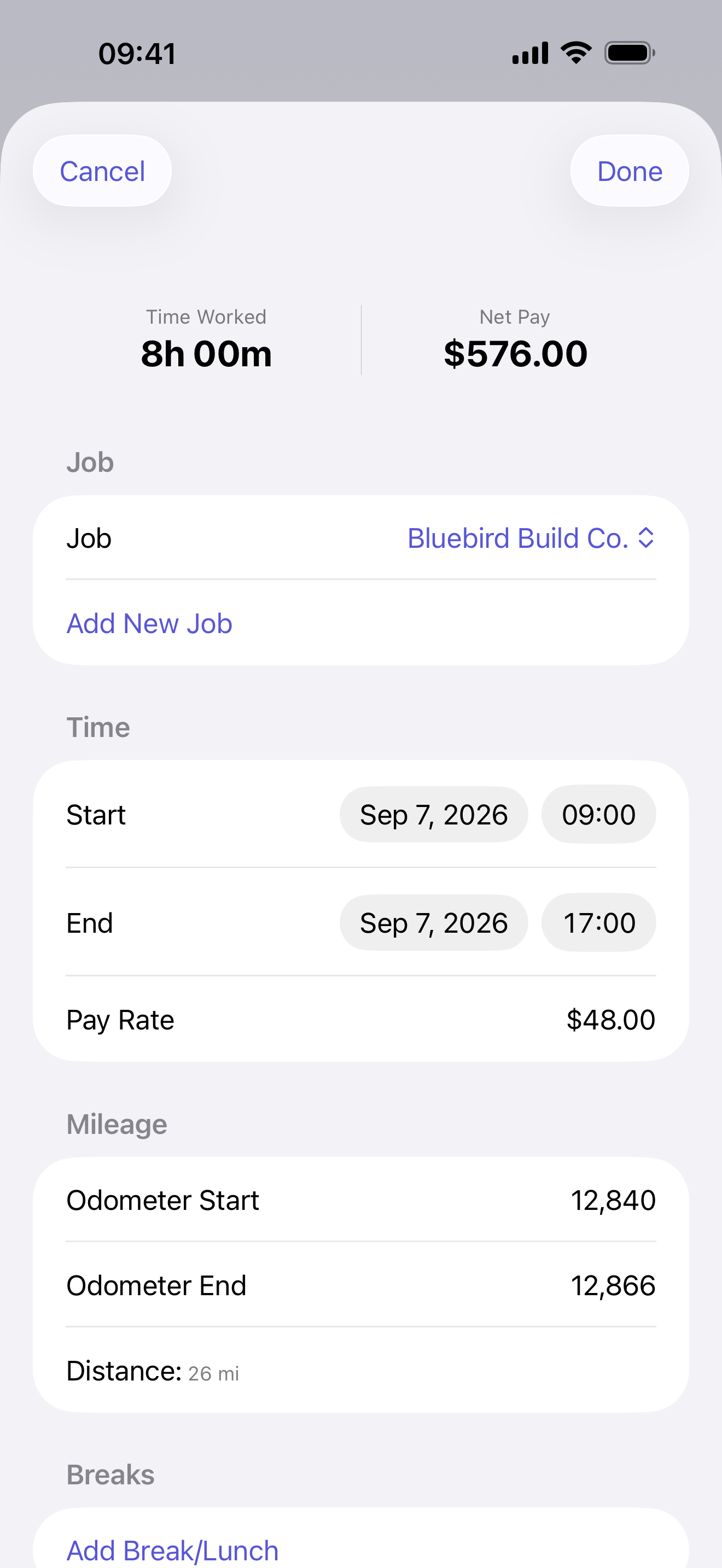
In Hours Tracker, open Time Card → Log Hours. Set Start to the evening the shift began and End to the next morning. Add any unpaid break under Add Break/Lunch, check Time Worked and tap Done.
For 22:00–06:00 with a 30-minute unpaid break, the result is 7h 30m on a normal night with no time rounding. The free version supports this one-job walkthrough. The steps use the English iPhone interface.
Screenshots show the app’s controls using existing sample records. The entry screenshot is a daytime shift, not the overnight example you will enter.
1. Enter 22:00 on Monday and 06:00 on Tuesday
- Open Time Card. Check the job below CURRENT JOB, then tap Log Hours.
- In the Start row, tap the date and choose the Monday the shift began. Set the time to 22:00, or 10:00 PM if your phone uses a 12-hour clock.
- In the End row, tap the date and choose the following Tuesday. Set the time to 06:00, or 6:00 AM.
- Read both rows back before adding a break: Monday at 22:00, Tuesday at 06:00.
Each row has two controls: a date and a time. Set the Start date first, because changing it moves the entry’s times to that date. Set the End date and time afterward.
If you have two jobs, select the workplace on Time Card before opening Log Hours. That starts the new entry with the selected job and its pay rate. See the job-switching steps.
2. Add the 02:00–02:30 unpaid break
- In the shift form, scroll down to Breaks and tap Add Break/Lunch.
- In the break editor, set Start to 02:00 and End to 02:30.
- Turn Paid off for this unpaid-break example.
- Tap Save to return to the shift form.
The break editor uses times. For a shift starting at 22:00, the app places a 02:00 break on the following day. Keep the shift’s End date on Tuesday.
A paid break remains in the work-time total; an unpaid break is subtracted. Set Paid to match the actual break. For this example, keep End at 06:00 and let the unpaid-break entry subtract the 30 minutes—do not also move End back to 05:30.
3. Check Time Worked, then tap Done
Return to the top of the entry form. With these dates, no clock change and no time rounding, Time Worked should show 7h 30m.
| Part of the entry | Time | Duration |
|---|---|---|
| Before midnight | Monday 22:00–00:00 | 2 h |
| After midnight | Tuesday 00:00–06:00 | 6 h |
| Unpaid break | Tuesday 02:00–02:30 | Subtract 30 min |
| Time Worked | 7 h 30 min | |
Tap Done at the top right of the shift form to save it. Saving the break alone does not finish saving a new shift.
If the duration differs, check both dates, AM/PM if shown, the break times and Paid. Time Worked also uses your configured rounding. Pro users can check those settings under Settings → Rounding Rules.
If another form wants a decimal, 7 hours 30 minutes is 7.50 hours. Use the decimal converter to check that number.
4. Find the shift under its start date
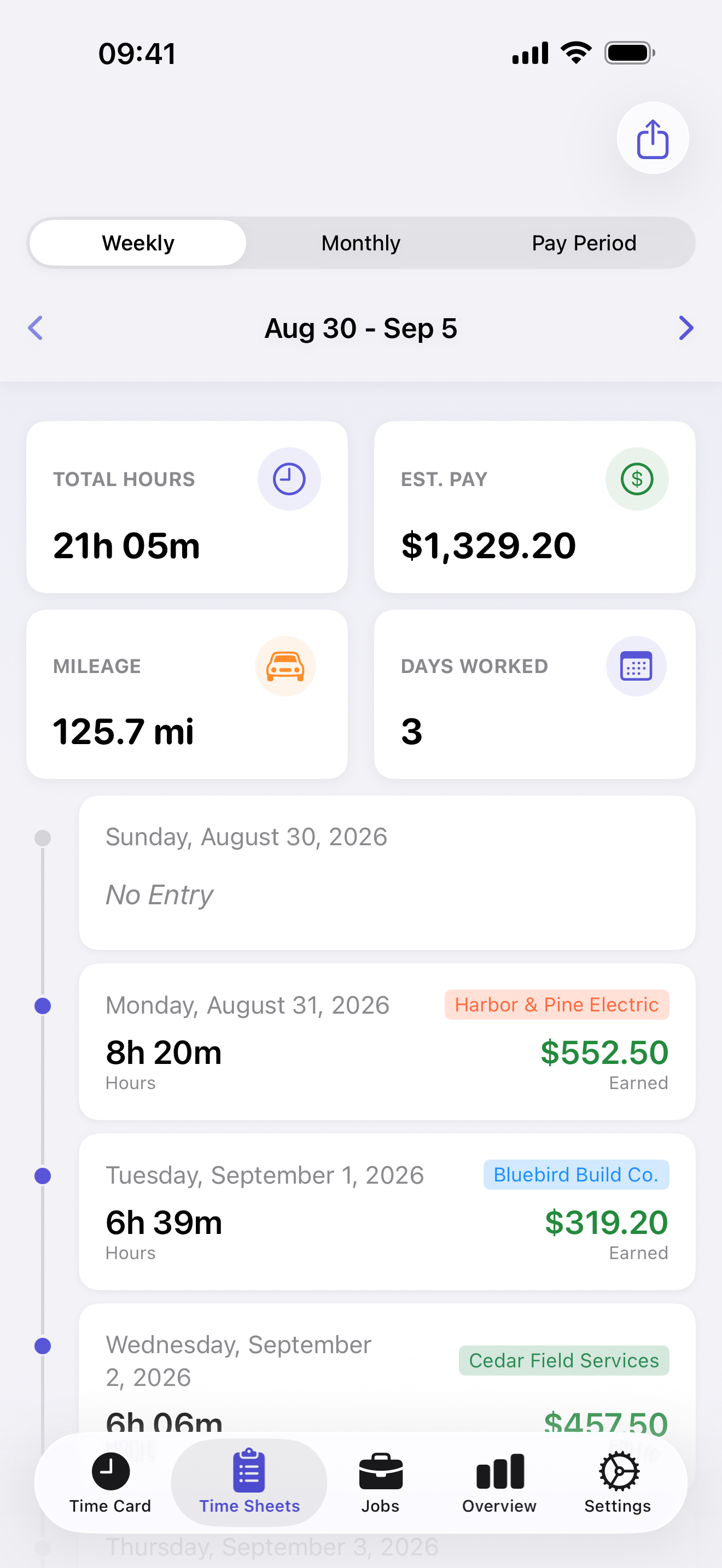
- Open Time Sheets.
- Select Weekly and use the date arrows to reach the week containing the Monday you entered as Start.
- Find the entry under Monday, not Tuesday. Check the job name on its row.
- Tap the row to reopen it and check Start, End and the saved break. Tap Done after any corrections.
To export it, tap the export icon at the top right. In Export, choose the correct Job and a Range that includes the start date. Then tap Save PDF, or Pro’s Save XLSX.
The selected date range in Export may be a previously used range. Check it there before saving. For the full process, see create and export a timesheet.
If the night crosses a reporting boundary
Hours Tracker groups and exports the whole entry by its Start date. It does not automatically split an overnight entry at midnight or between reporting periods.
For a Sunday 22:00–Monday 06:00 shift, look for the saved entry on Sunday and include Sunday in the export range. If your workplace requires separate lines on either side of midnight, prepare that split for its submission format using the original shift and actual break times. Do not submit the full shift in both periods.
If the clocks change during the shift
The 7h 30m example assumes an ordinary night with no clock change. A skipped or repeated hour can change elapsed time. Check the actual dates, times and elapsed duration before submitting a shift worked during a clock change.
For a quick arithmetic check on a normal night, the time card calculator accepts 22:00–06:00 and a 30-minute break. It has no date or time-zone inputs, so it cannot check a daylight-saving change.